Once you've configured your language and currency settings in Markets, the next exciting step is setting up your Selector. This powerful feature allows your customers to effortlessly select their preferred language and currency, creating a seamless and personalized shopping experience that drives engagement and sales.
I. General Settings
1. Activate Selector
Follow instructions How to activate GLC Selector on your store through Theme Editor to enable the GLC App Embed block in your Shopify Theme Editor.
Gelacy only works with published themes; it won't function with draft themes. Please consider publishing your theme to make it work
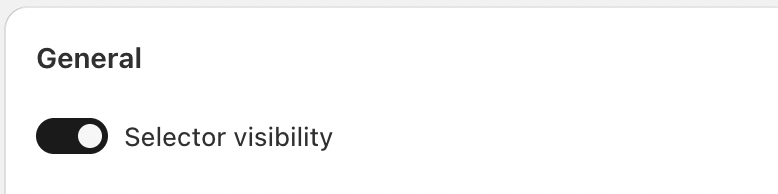
2. Selector Visibility
The Selector visibility toggle enables or disables the selector on your storefront.
Enabled: The selector is visible to customers.
Disabled: The selector is hidden from the storefront.
This option is useful if you want to temporarily hide the selector while making changes or testing.
Appearance Settings
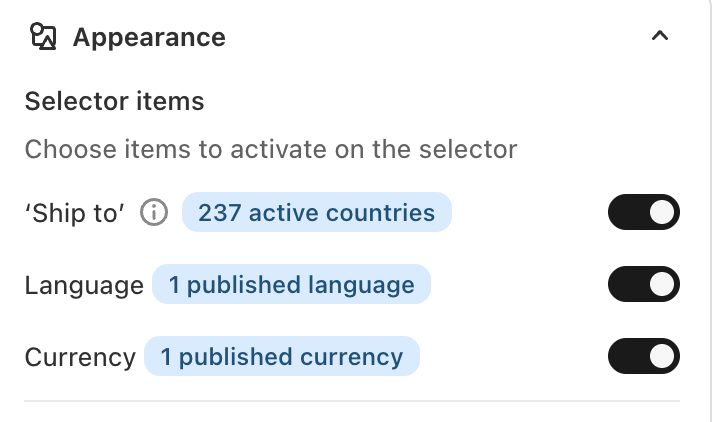
The Appearance section allows you to define what information is displayed inside the selector.
Selector Items
You can choose which elements appear in the selector:
1. Ship To
Displays available shipping destinations.
Shows the number of active countries configured in your store (e.g., 237 active countries).
Ideal for stores shipping internationally.
2. Language
Displays published storefront languages.
Only published languages appear in the selector.
Helpful for multilingual stores targeting different regions.
3. Currency
Displays published currencies.
Syncs with Shopify Markets and currency settings.
Allows customers to view prices in their local currency.
Each item has its own toggle, giving you full control over what customers see.
Selector Style
The Selector style determines how selector items are displayed on the storefront.
Integrated Selector
Combines country, language, and currency into a single unified selector.
Clean and space‑efficient.
Recommended for most modern storefronts.
Individual Selectors
Displays separate selectors for country, language, and currency.
Provides clearer separation but takes more screen space.
Useful for stores that want maximum clarity for each option.
II. Advanced Options
1. Template Selection
Templates define the visual design of the selector. Geolocation – GLC offers multiple professionally designed templates:
Essential
Minimal and clean design.
Ideal for simple or lightweight themes.
Prestige
Premium and modern appearance.
Best suited for branded or high‑end storefronts.
Enhances visibility without overwhelming the layout.
Devotion
Stylish and expressive design.
Works well with creative or lifestyle brands.
You can switch templates at any time to match your theme or branding.
2. Customization
You can set up all properties of Selector and Selectors on Desktop and Mobile separately such as:
- Positions: Place/embed your Selector exactly where it works best
- Selector Style: Choose between dropdown and popup displays
- Color Schemes: Customize borders, backgrounds, text color, hover color, and button color,...
Navigate to Selector settings → Customization
If you need help for customize Selector, please refer to this How to customize Selector
NOTE
- For password protected stores, Preview window in the right panel only helps you to have a better visual before applying any change. To see how color effects applied on your store exactly, please kindly view and check it on your real device or please disable Password.
- On your live website, customer only need to select a language/currency on Selector then click on Apply button to apply that language/currency.
- E.g. Label contents such as Language, Currency, Search in English at default on Selector. Once visitors select a target language on the Selector and apply then all these label contents would be translated according to that target language automatically. You can edit its translation manually in-app easily, click here to learn more.
If you need further guidance or have any questions, don't hesitate to reach out to our support team through email us at support@gelacy.app
Was this article helpful?
That’s Great!
Thank you for your feedback
Sorry! We couldn't be helpful
Thank you for your feedback
Feedback sent
We appreciate your effort and will try to fix the article