The Geolocation Modal in GLC allows you to recommend or apply the most relevant shipping country, language, and currency for visitors based on their location. Using Appearance settings and Content settings, you can fully customize how the modal looks and what it says to match your brand and customer experience.
This article explains each setting and how to configure it.
Accessing Modal Settings
To configure the Geolocation modal:
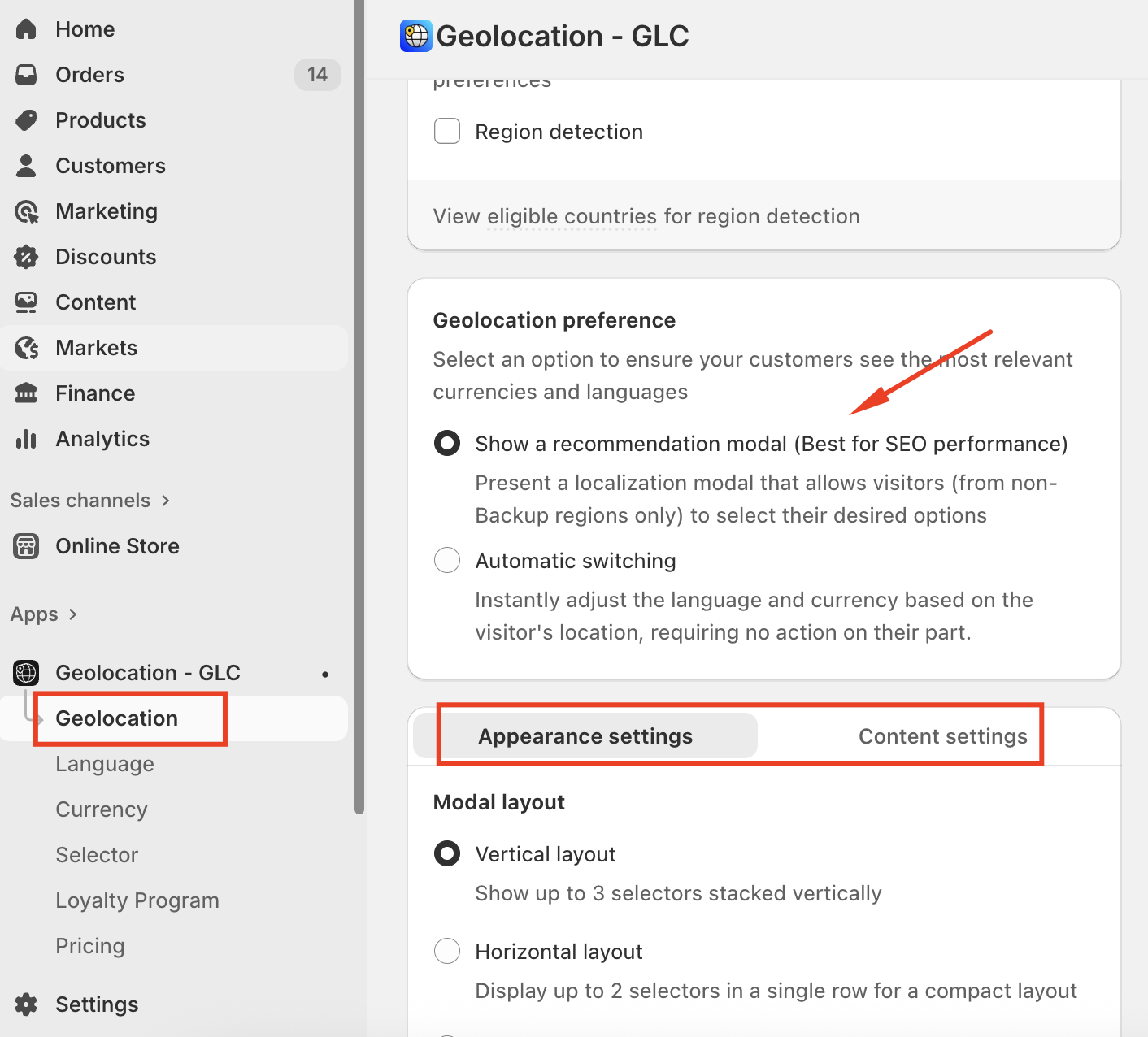
Go to Geolocation.
Ensure Geolocation & Show a recommendation modal (Best for SEO performance) are enabled.
Scroll to the modal configuration section.
Switch between Appearance settings and Content settings as needed.
Appearance Settings
Appearance settings control the layout, style, and visual behavior of the Geolocation modal.
Modal Layout
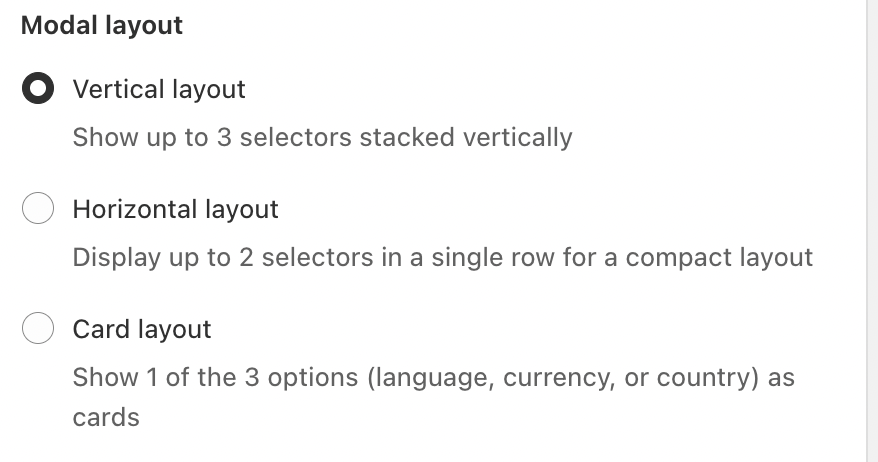
Choose how selectors (country, language, currency) are arranged inside the modal:
Vertical Layout
Displays up to 3 selectors stacked vertically.
Best for clarity and readability.
Recommended for most stores.
Horizontal Layout
Displays up to 2 selectors in a single row.
Creates a more compact layout.
Suitable for minimal designs.
Card Layout
Displays one option at a time (language, currency, or country) as selectable cards.
Useful for simplified or mobile-focused experiences.
Visual Style
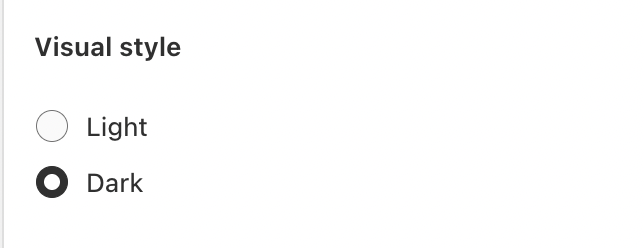
Select the overall color theme of the modal:
Light – Clean and bright appearance.
Dark – Dark-themed modal for modern or dark storefronts.
Advanced Settings
Advanced settings provide more granular control over selector behavior and modal design.
Selector Appearance
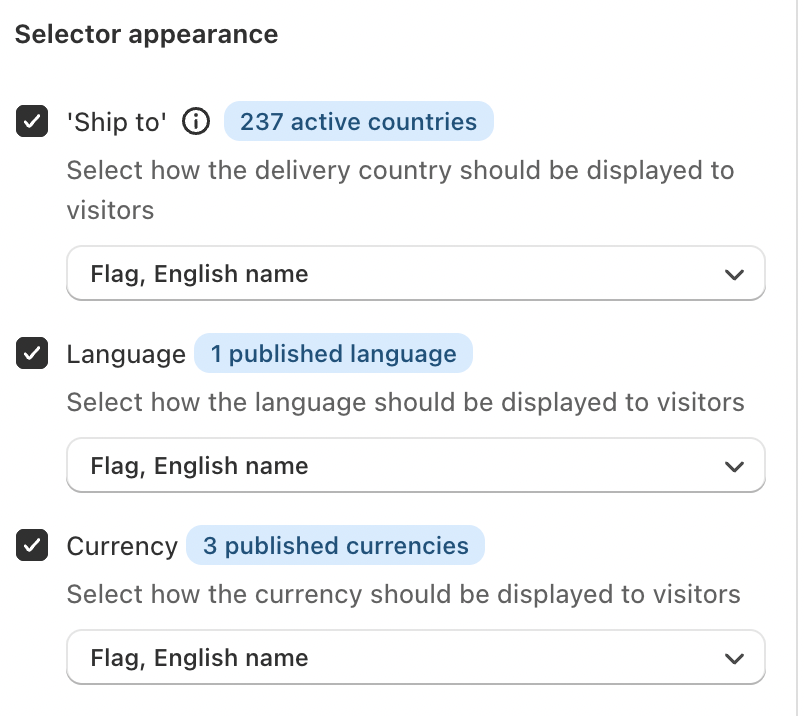
Control which selectors appear and how they are displayed:
Ship To
Displays the visitor’s shipping country.
Shows all active countries configured in your store.
Display options include:
Flag
English name
Flag + English name
Language
Displays published storefront languages.
Only published languages are shown.
Can be displayed using flag, name, or both.
Currency
Displays available currencies.
Reflects published currencies.
Supports flag and English name formats.
Modal Media
You can enhance the modal visually by enabling:
Image – Display a custom image inside the modal.
Logo – Show your store logo for brand consistency.
Both options are optional and can be enabled independently.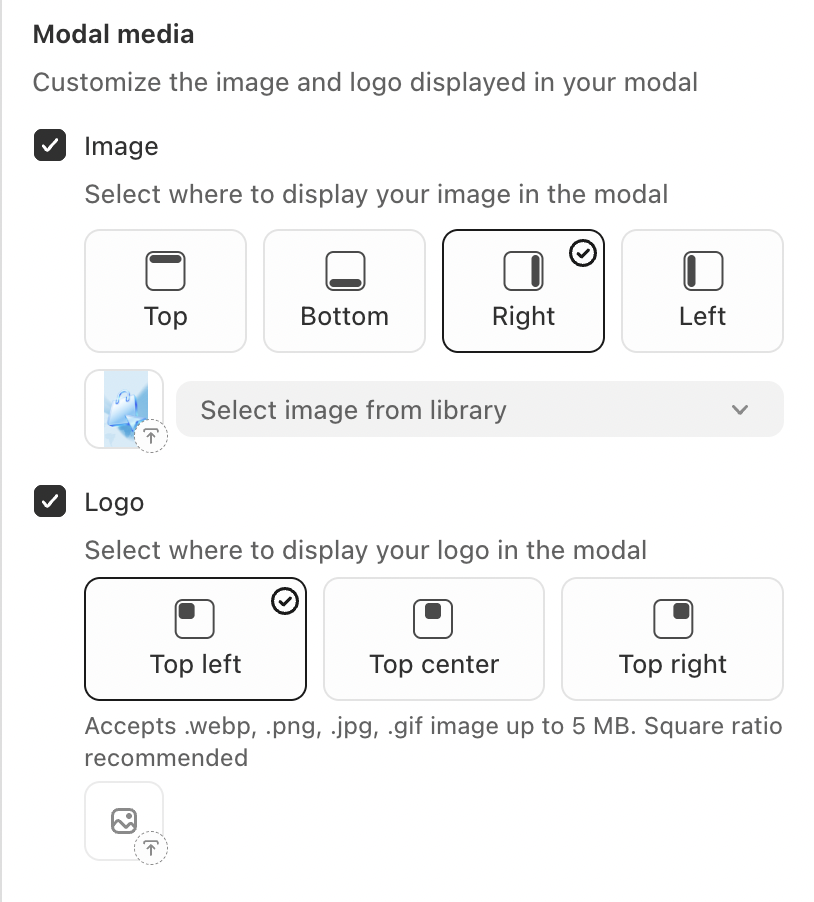
Button Alignment
Choose how the CTA button is aligned within the modal:
Left
Center
Right
Full Width (recommended for mobile usability)
Border Radius
Control the shape of the modal and buttons:
Rounded – Soft, modern appearance.
Square – Sharp, minimal look.
Delay Waiting Time
Set a delay before the modal appears after a visitor enters your store.
Enable Delay waiting time
Specify the delay in seconds (e.g., 5 seconds)
This helps prevent interrupting users immediately on page load.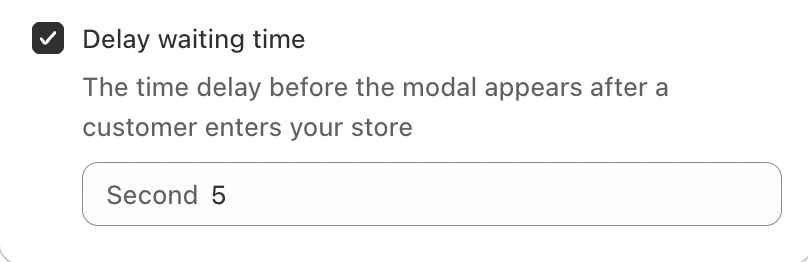
Content Settings
Content settings control the text and labels shown inside the Geolocation modal.
Modal Title
Set the main heading of the modal.
Body Content (Visitor Not in Any Market)
Displayed when a visitor’s country does not belong to any configured market.
Supports
{country_name}variableExample:
We’re sorry, but we do not currently ship to {country_name}.
Please select your shipping country.
Body Content (General)
Displayed when a visitor’s country is recognized.
Example:
It seems that you are in {country_name}. Choose the option you prefer:
Selector Labels
You can customize all selector labels:
Ship to – Label for shipping country selector
Language – Label for language selector
Currency – Label for currency selector
Search – Placeholder text for selector search
These labels help align wording with your brand tone or storefront language.
CTA Button Label
Customize the call-to-action button text.
Example:
SHOP NOW
This button confirms the visitor’s selected options.
Conclusion
The Geolocation modal appearance and content settings allow you to fully customize how localization is presented to your visitors. By carefully configuring layout, visuals, messaging, and behavior, you can create a seamless and branded localization experience that improves usability and builds trust with international customers.
If you need further guidance or have any questions, don't hesitate to reach out to our support team through email us at support@gelacy.app
Was this article helpful?
That’s Great!
Thank you for your feedback
Sorry! We couldn't be helpful
Thank you for your feedback
Feedback sent
We appreciate your effort and will try to fix the article