After installing Gelacy on your Shopify store, you'll need to configure currency codes to enable multi-currency functionality. This essential setup ensures your international customers can view and understand prices in their preferred currencies.
With proper currency code setup, Gelacy seamlessly integrates with your theme to display accurate currency conversions, creating a professional shopping experience that builds customer confidence and increases global sales.
I. How to Set Up Currency Code
1. Access Currency Settings
Navigate to "Currency" menu in Gelacy
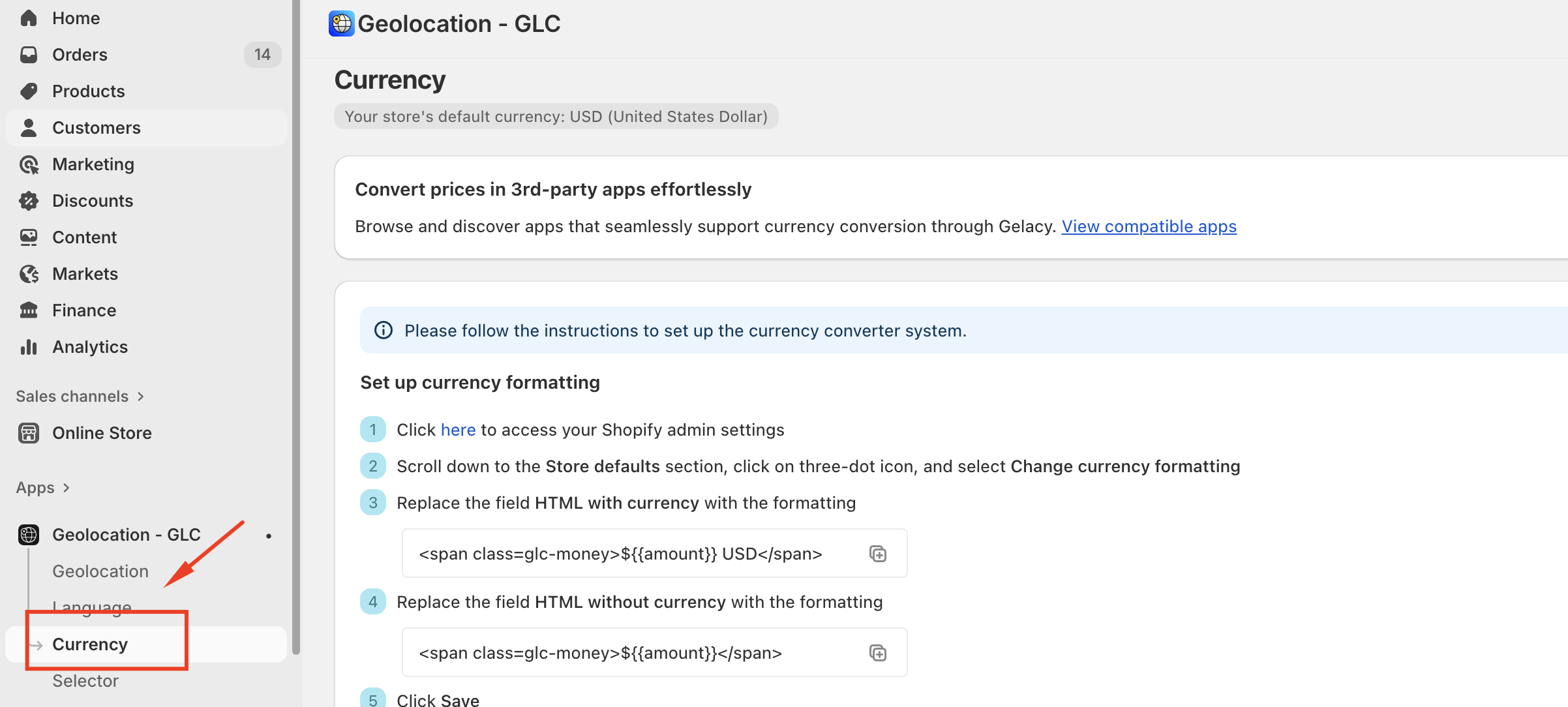
2. Follow the Built-in Guide
A helpful guide will appear, providing step-by-step instructions tailored to your specific theme setup.
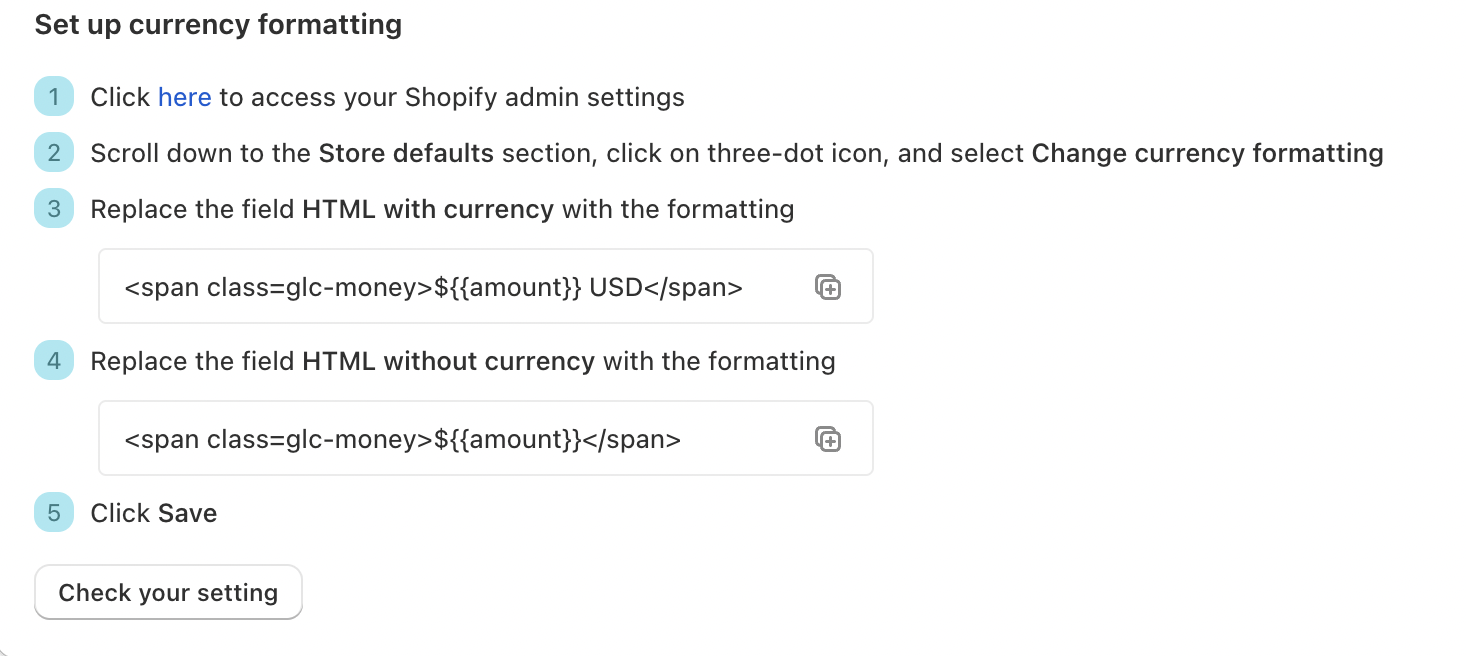
3. Configure Shopify Settings
• Go to "Settings" in your Shopify admin
• Navigate to "General" → Scroll down to "Store defaults"
• Click "Change currency formatting"
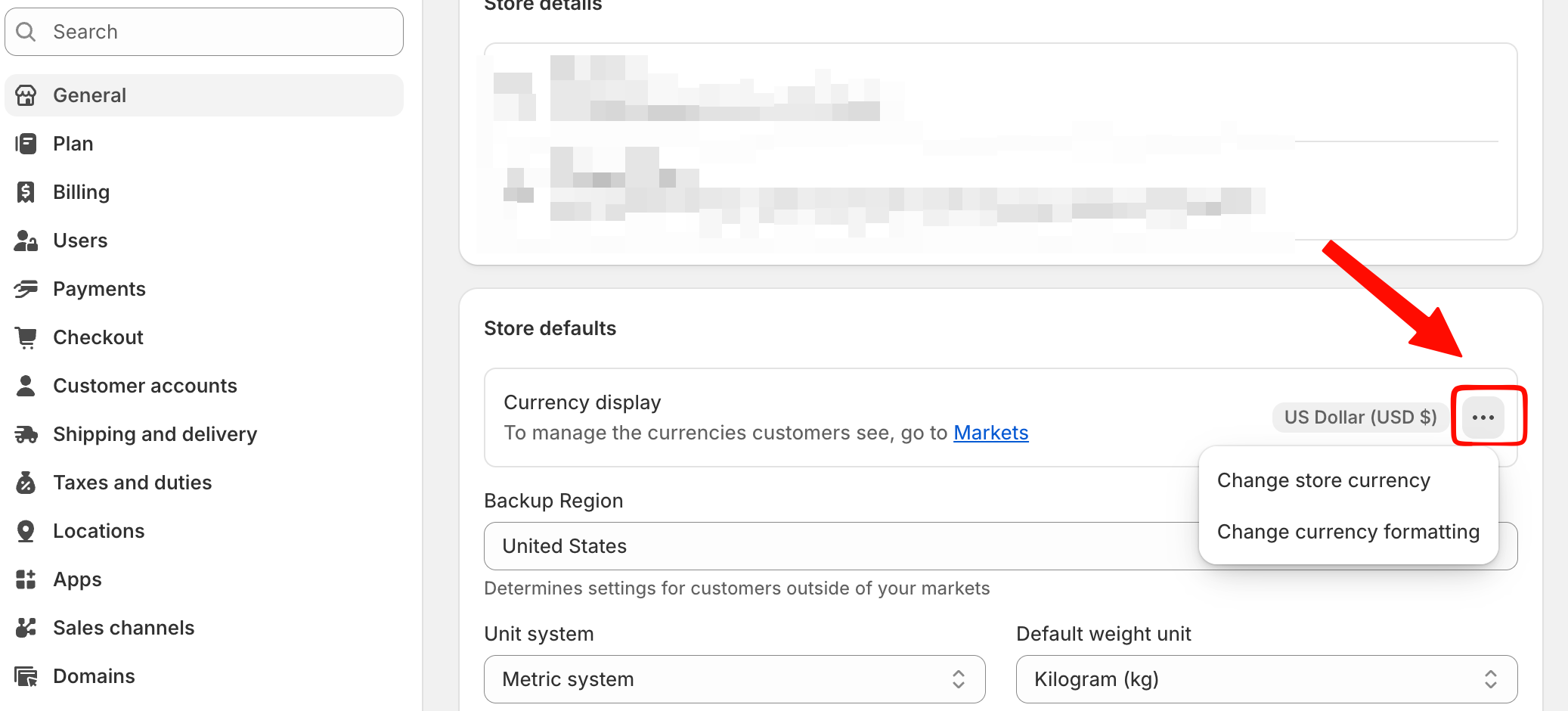
4. Update HTML Currency Code
For sections WITH currency display:
Replace the existing HTML code with the provided code from Step 3 in the app instructions
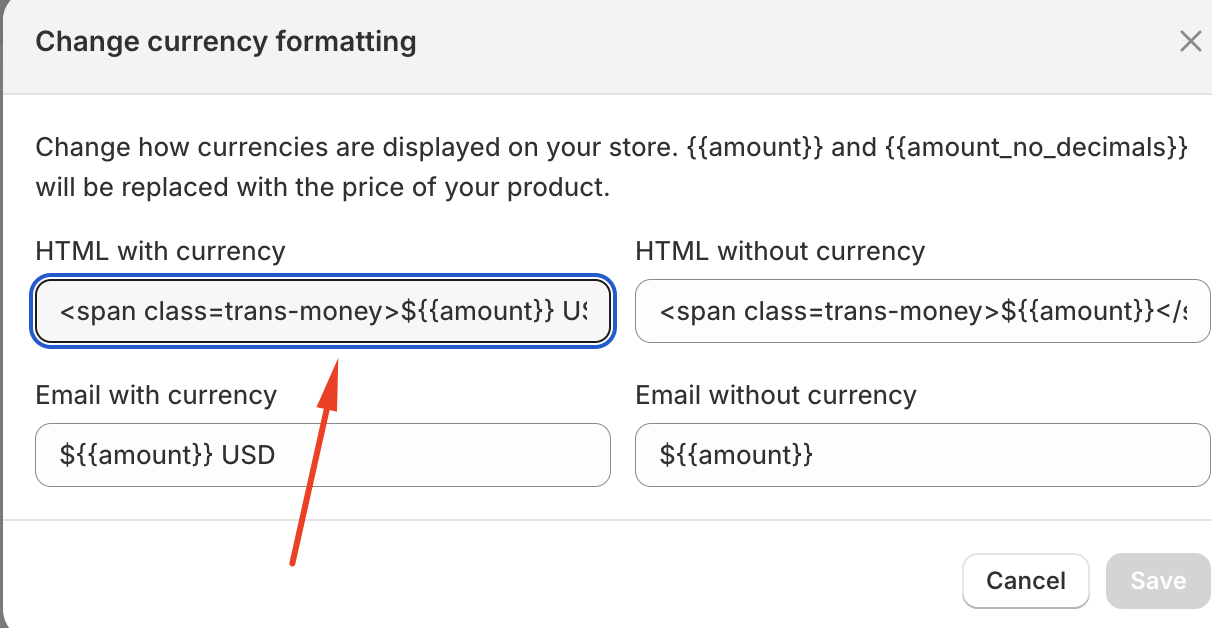
For sections WITHOUT currency display:
Replace the existing HTML code with the provided code from Step 4 in the app instructions
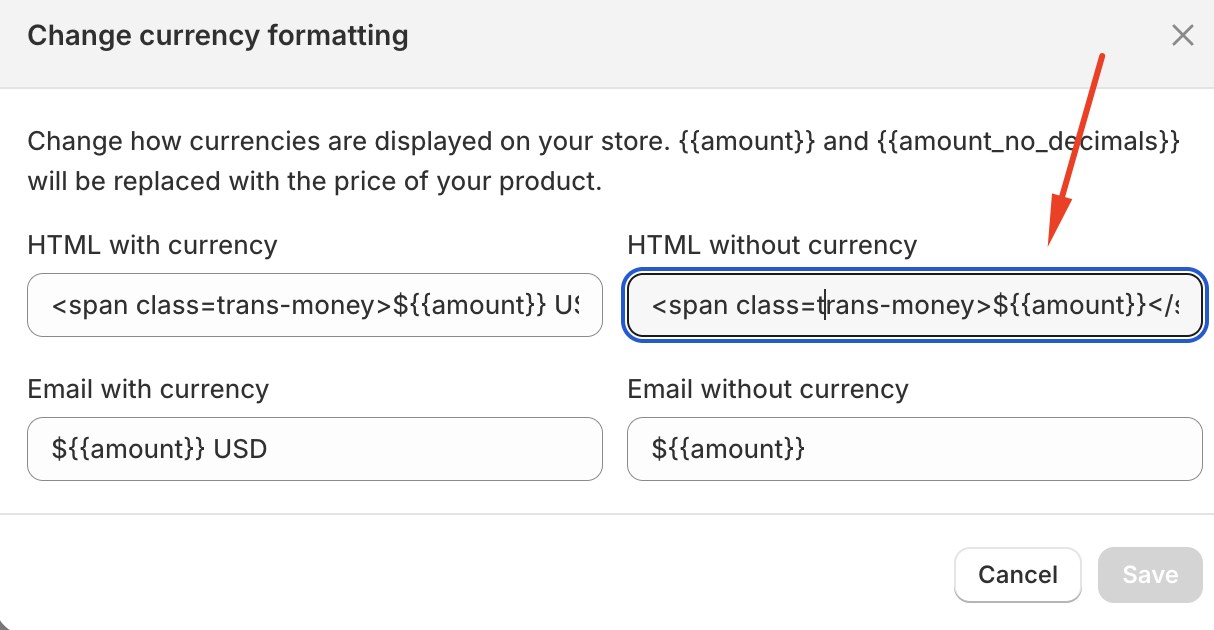
5. Complete Setup
• Save your settings in Shopify
• Return to Gelacy app and reload the page
• Setup complete - Your currency functionality is now active
If you have questions or need help setting up, feel free to contact our support team at support@gelacy.app
Was this article helpful?
That’s Great!
Thank you for your feedback
Sorry! We couldn't be helpful
Thank you for your feedback
Feedback sent
We appreciate your effort and will try to fix the article
