Expanding your store to serve customers across the globe begins with configuring the right languages in your GLC setup. Whether you’re reaching Spanish-speaking shoppers throughout Latin America or connecting with French-speaking audiences in Europe, offering multiple languages is key to delivering an authentic, localized shopping experience.
This step-by-step guide will walk you through the process of adding new languages to your store and managing them effectively. With the right configuration in place, you can ensure that international customers feel welcomed, understood, and fully at home as they browse your products.
I. Add languages to your store
1. Step-by-step language addition process
Adding a new language to your GLC-powered store is straightforward, follow these steps to get started:
Navigate to the Language Settings
From your dashboard, go to Language → Add Target Language.
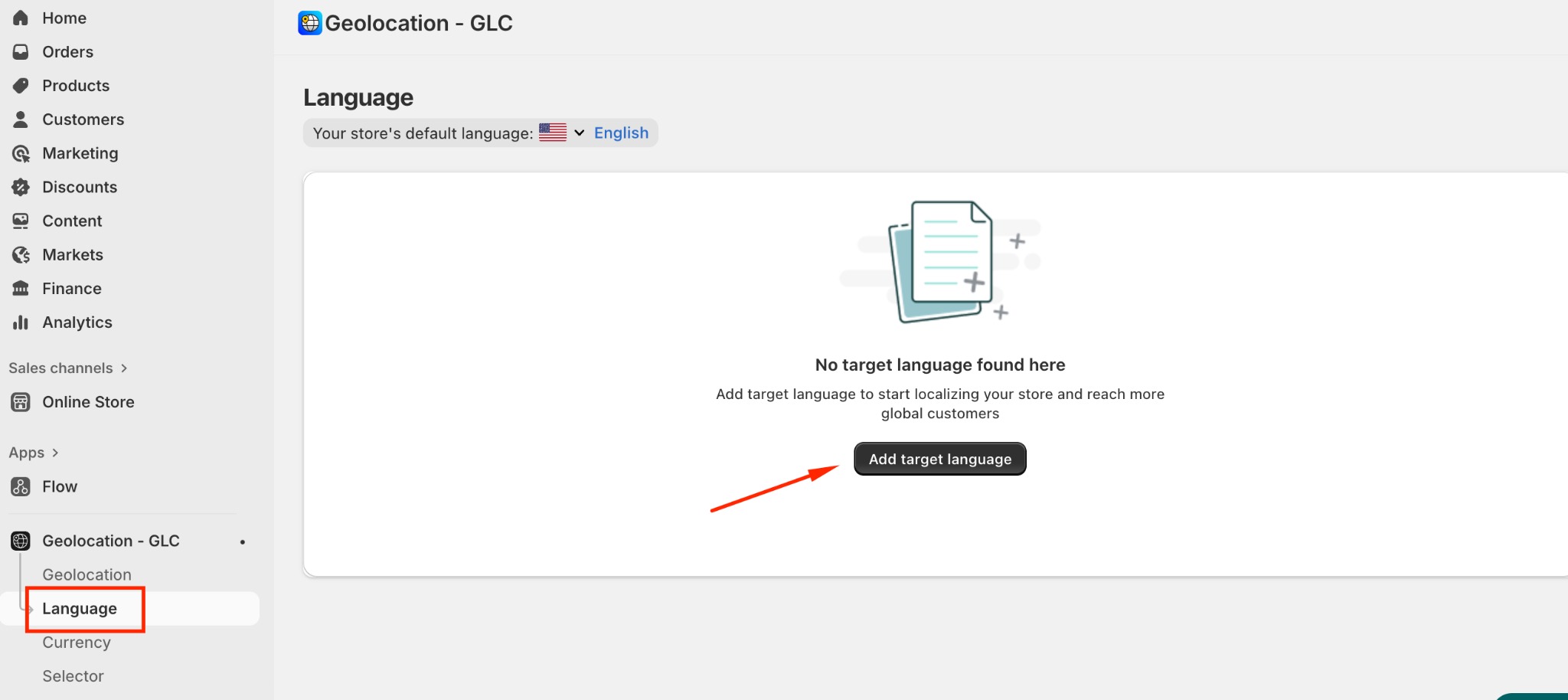
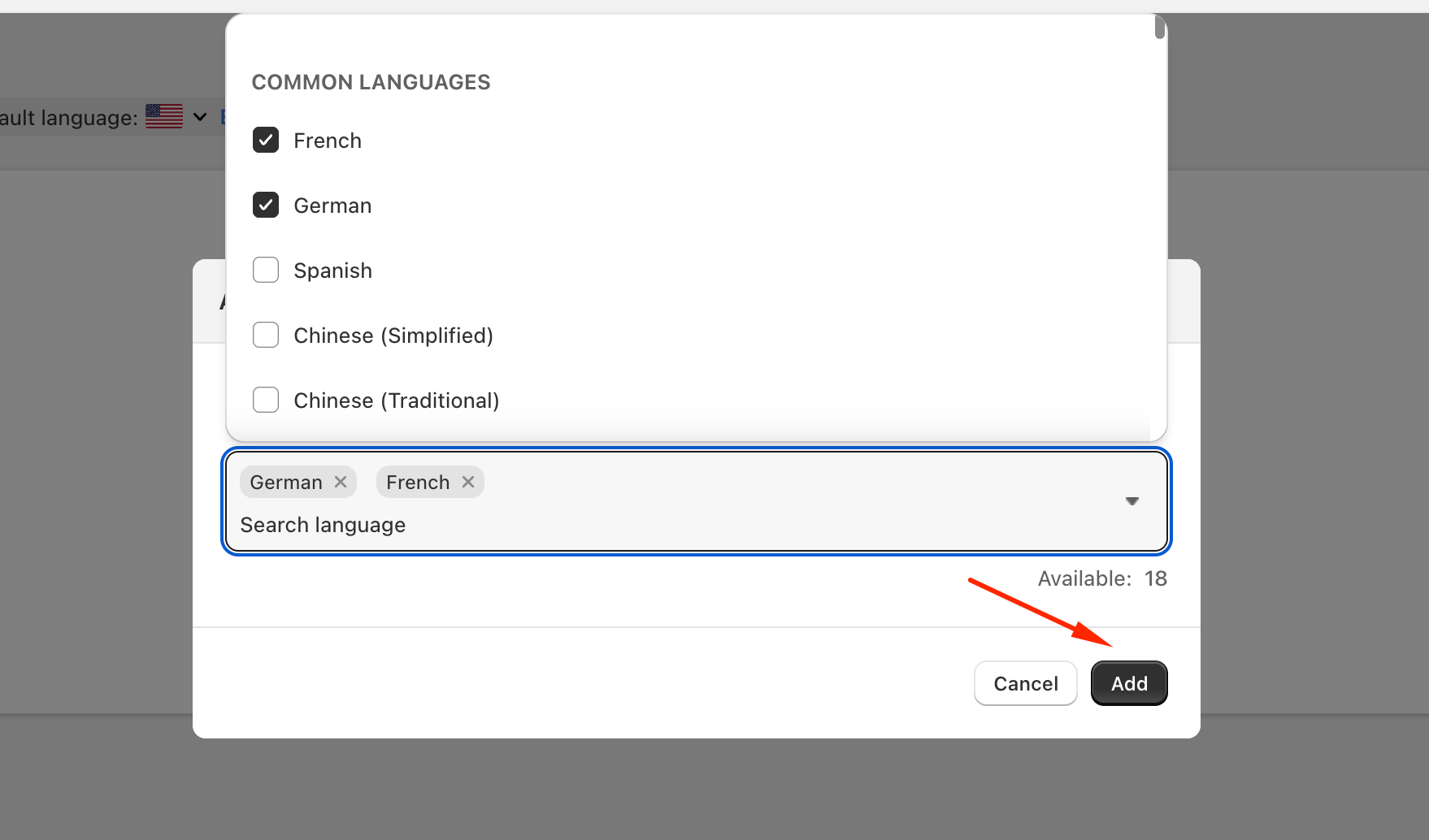
Choose Your New Language
Browse the list of available options, select the language you want to add, and click Add to include it in your store’s configuration.
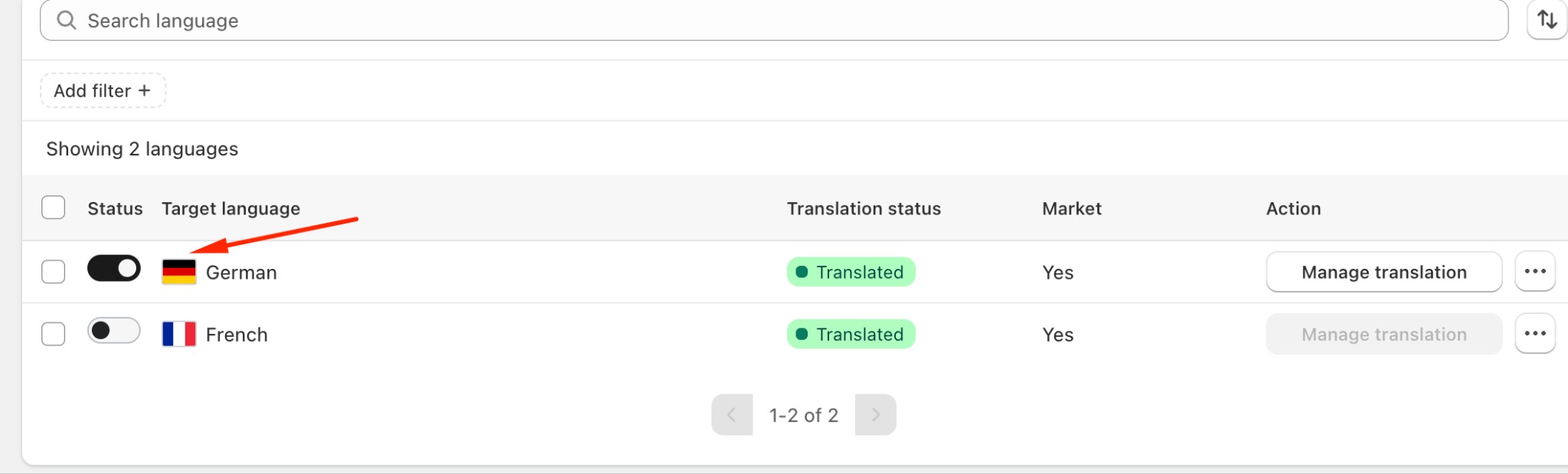
Enable the Language for Your Storefront
Once added, turn on the language to make it visible and accessible to customers browsing your store.
2. Customizing language appearance
You can further refine your language settings by customizing how each language appears:
Change the Language Flag — Click the three dots next to the target language and select a flag that best represents the country or region you wish to highlight. This helps give your store a more region-appropriate look and feel.
Pin Languages for Better Visibility — In the same menu, you can pin a language to the top of your list, ensuring it’s prominent and easy to access. This is especially useful when you want to prioritize languages used by a large portion of your international customer base.
Remove Languages When Needed — If you decide a language is no longer necessary, you can remove it from your store’s list with just a few clicks.
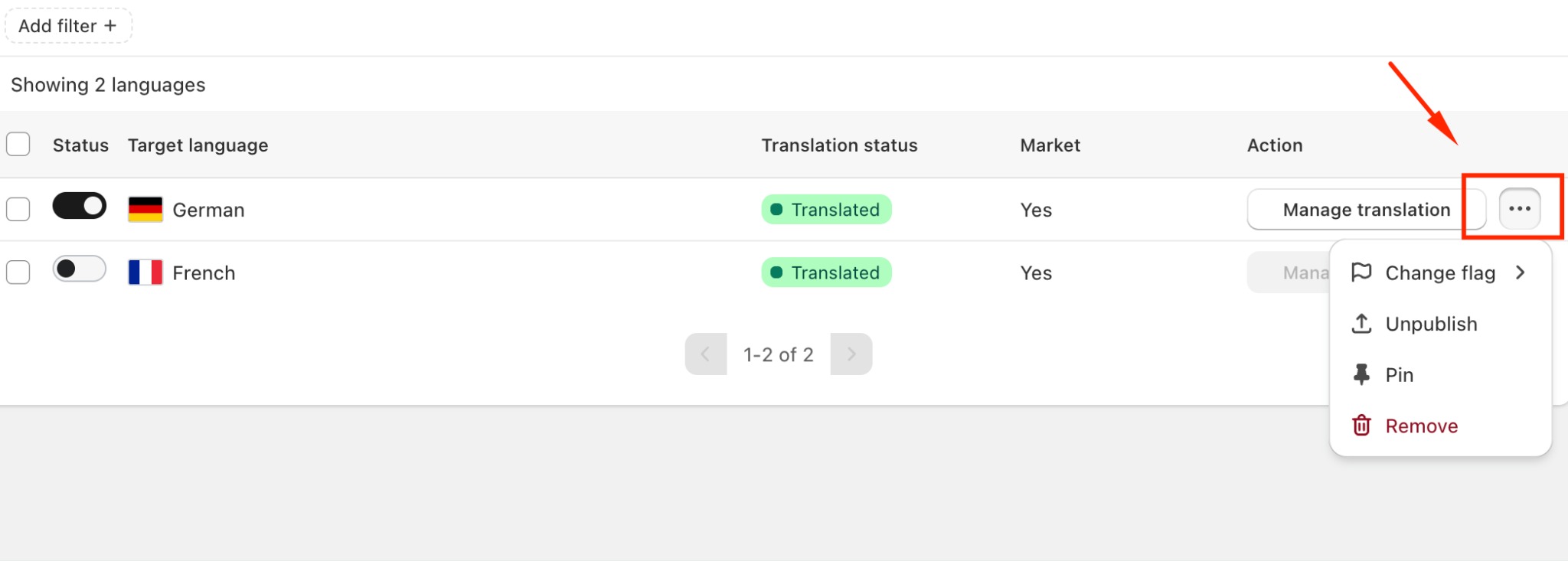
These customization options help you maintain a clean, user-friendly, and regionally relevant storefront as you expand globally.
If you need further guidance or have any questions, don't hesitate to reach out to our support team through email us at support@gelacy.app
Was this article helpful?
That’s Great!
Thank you for your feedback
Sorry! We couldn't be helpful
Thank you for your feedback
Feedback sent
We appreciate your effort and will try to fix the article